![JHP_3C_TM.png]](https://jacksonhealthpros.com/hs-fs/hubfs/JHP_3C_TM.png?height=41&name=JHP_3C_TM.png)
Adding a Mileage Entry
1. Open Your Weekly Timecard
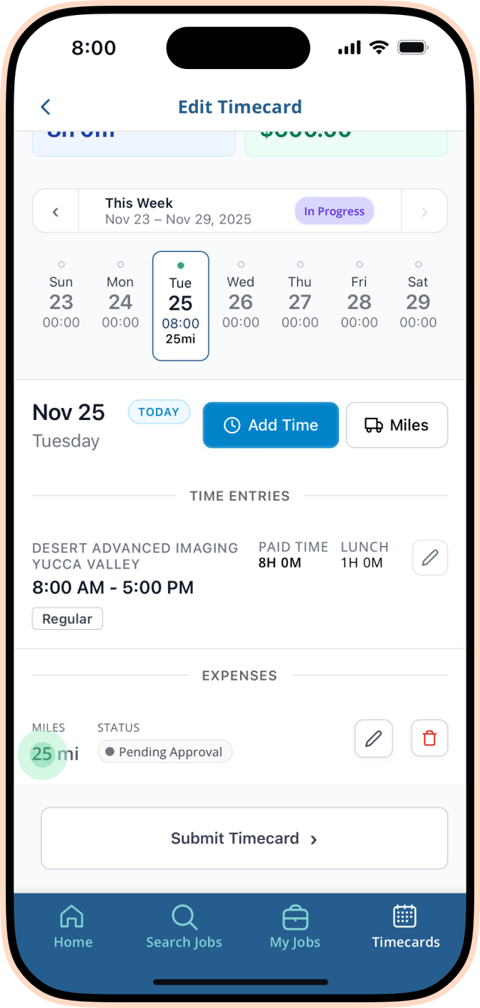
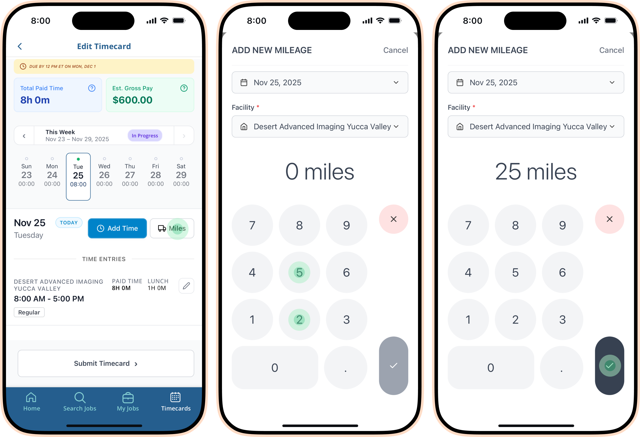
- Go to the Timecards tab and select the week you want to record mileage for. If mileage is permitted for that assignment, a Miles button will appear below the pay week calendar.
2. Tap "Miles" (Enabled Only on Valid Days)
- Tap Miles to create a new mileage entry
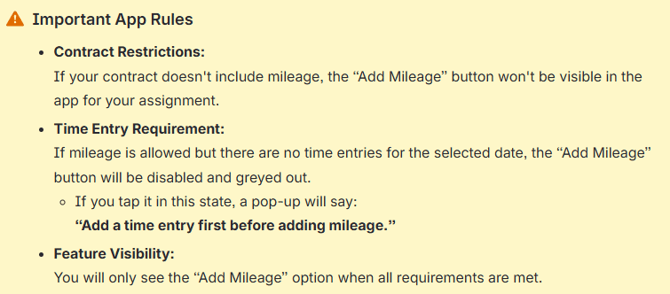
- If the button is greyed out, it means:
✔ Mileage is allowed
✘ But no time entry exists for that day - Attempting to tap it will show the required pop-up reminder.
3. Complete Required Fields
- Date: Choose the day that matches your work travel, then enter a time.
- Facility: Choose the appropriate facility for the trip from the dropdown menu or picker.
-
Miles Traveled: Enter the total miles driven on that day.
4. Save Entry
- Tap the “✔ – checkmark” to add your mileage for that date and facility.
What Happens Next
- Your entry will now show as a line item under the Mileage Summary for the week, and it will be automatically totaled.
- You can add multiple mileage entries as long as:
- Mileage is contractually allowed
- Each entry is tied to a valid day with time worked